Requesters may cancel any of their open orders after submitting them.
Use the Cancel Action
Requesters who submitted an order can cancel that order after the fact.
- Log into your NursePro Plus portal account.
- Go to the View Orders page.
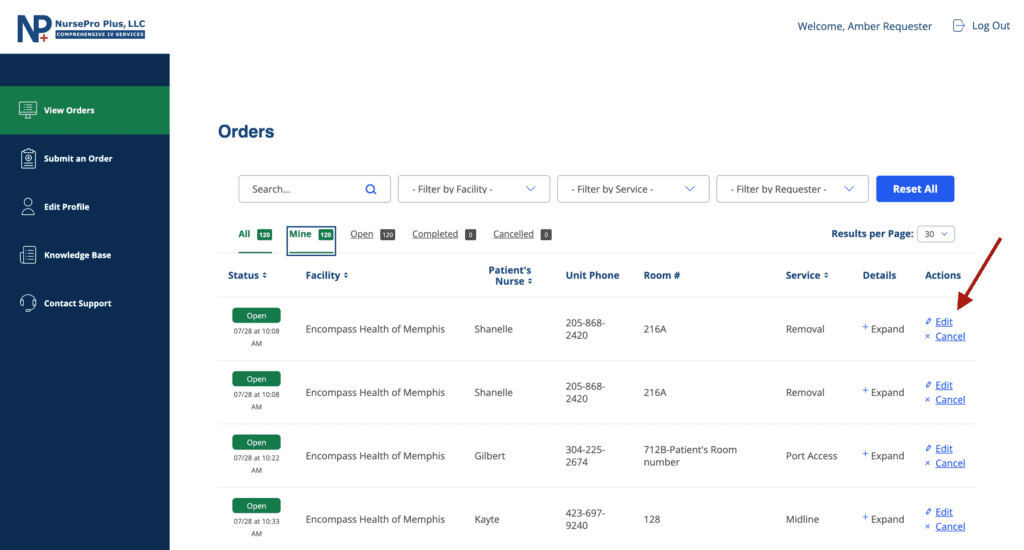
- Click on the “Mine” tab beneath search and filters to see only orders created by you.
- Identify the order that you need to cancel from the list. If necessary, you can use the “Facility” or “Service” filter dropdowns at the top to further narrow down the orders list.
- Click on the “Cancel” link under the “Actions” column for the corresponding order.
- After clicking the “Cancel” link, be sure to accept the confirmation message that pops up, or the order will remain open.
What Happens Next
If the order that was canceled is assigned to a Nurse, the assigned Nurse will receive an email notification immediately that the order was canceled. The order will still be visible for a period of time with a “Cancelled” status in the “View Orders” screen.
If the order that was canceled is NOT assigned to a Nurse, all Nurses connected to the facility where the order was supposed to take place will receive an email notification immediately that the order was canceled. The order will still be visible for a period of time with a “Cancelled” status in the “View Orders” screen.