Nurses accept new orders on a first-come, first-serve basis.
Accept Via Email
- When an order is submitted at a facility, all actively scheduled nurses at that facility will receive a “New Order” email notice.
- Nurses who receive this email notice can accept the order by clicking the corresponding link inside the email notification.
- If another Nurse accepted the order before you did, you will receive an automatic notice that the order was already accepted by another Nurse and is no longer available.
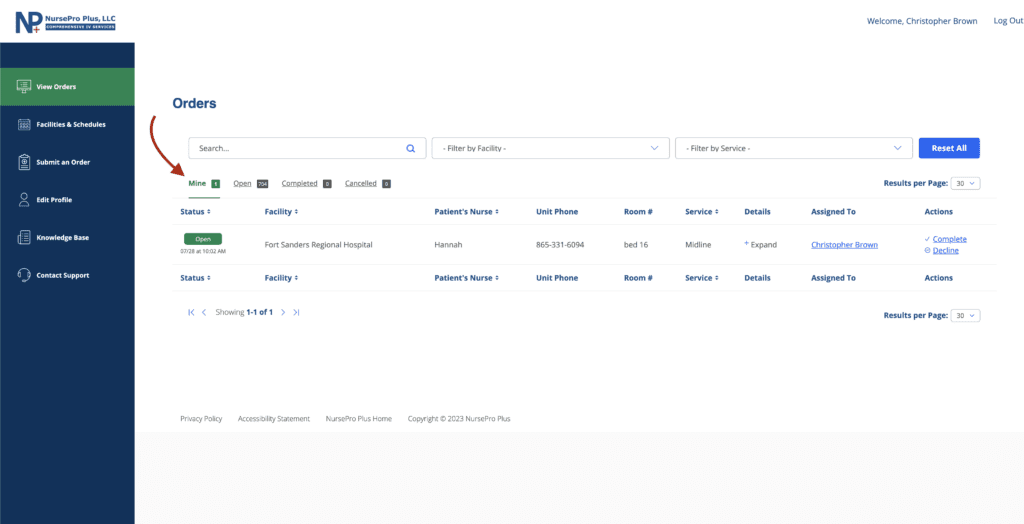
- You can always double-check your assigned orders by clicking on the “Mine” tab and confirming that the order you just accepted shows as being assigned to you.
Accept in the Portal
- Log into your NursePro Plus portal account.
- Go to the View Orders page.
- Click on the “Open” tab beneath search and filters to see only orders. Orders that are not assigned to a Nurse will not have an assigned Nurse and will have an “Accept” link on the far right-hand column.
- Click on the “Accept” link under the “Actions” column for any order that you wish to accept. Accepting an order makes you the assigned Nurse, and no other Nurses will be able to take the order. Please only accept orders that you intend to fulfill.
- After clicking the “Accept” link, be sure to double-check that the order is assigned to you. You can do this by clicking on the “Mine” tab and confirming that the order you just accepted shows as being assigned to you.